 Joan León
 Running machine learning models in the browser makes a lot of sense: no network latency, no data leaving the device, no server to maintain. The problem has always been performance. With WebGPU as the backend, that problem improves significantly.
In this article we look at how to use TensorFlow.js with the WebGPU backend, what performance difference it makes compared to the CPU backend, and which use cases are viable in production today.
TensorFlow.js and its backends
TensorFlow.js can run the same mathematical operations using different backends:
| Backend | Runs on | When to use |
|---|---|---|
cpu | CPU (plain JavaScript) | Universal fallback |
wasm | CPU (WebAssembly) | Better than plain CPU, no GPU |
webgl | GPU (WebGL 1/2) | Before WebGPU |
webgpu | GPU (WebGPU) | Maximum performance |
The webgpu backend is the most recent and the fastest. It uses compute shaders for the matrix operations that are the core of any neural network.
Setup
npm install @tensorflow/tfjs @tensorflow/tfjs-backend-webgpu
import * as tf from "@tensorflow/tfjs";
import "@tensorflow/tfjs-backend-webgpu";

async function init() {
  await tf.setBackend("webgpu");
  await tf.ready();

  console.log("Active backend:", tf.getBackend()); // 'webgpu'
}
With a robust fallback:
async function initBestBackend() {
  const backends = ["webgpu", "webgl", "wasm", "cpu"];

  for (const backend of backends) {
    try {
      await tf.setBackend(backend);
      await tf.ready();
      console.log(`Backend: ${tf.getBackend()}`);
      return;
    } catch {
      console.warn(`${backend} not available, trying next...`);
    }
  }
}
Example: image classification with MobileNet
MobileNet is a lightweight model for image classification, ideal to get started.
import * as mobilenet from "@tensorflow-models/mobilenet";

const RUNS = 5;

async function classifyImage(imageElement) {
  await initBestBackend();

  const model = await mobilenet.load({ version: 2, alpha: 1.0 });

  // First inference: slower (shader compilation)
  const firstStart = performance.now();
  await model.classify(imageElement);
  const firstMs = performance.now() - firstStart;

  // Subsequent inferences: cruising speed
  const times = [];
  for (let i = 0; i < RUNS; i++) {
    const start = performance.now();
    await model.classify(imageElement);
    times.push(performance.now() - start);
  }

  const median = [...times].sort((a, b) => a - b)[Math.floor(RUNS / 2)];

  console.log(`First inference: ${firstMs.toFixed(1)}ms`);
  console.log(`Median (${RUNS} runs): ${median.toFixed(1)}ms`);
  // [{ className: "tabby cat", probability: 0.87 }, ...]
}
The first-inference effect
WebGPU compiles shaders the first time it runs a model. This makes the first inference significantly slower. It’s important to warm up the model before measuring or presenting results to users.
// ❌ Shows spinner during shader compilation
const predictions = await model.classify(image);
showResults(predictions);

// ✅ Warms up in background, responds fast from the start
await model.classify(warmupImage); // small image or placeholder
const predictions = await model.classify(image);
showResults(predictions);
Benchmarks: CPU vs WebGPU
Inference with MobileNet v2 on a 224×224 image:
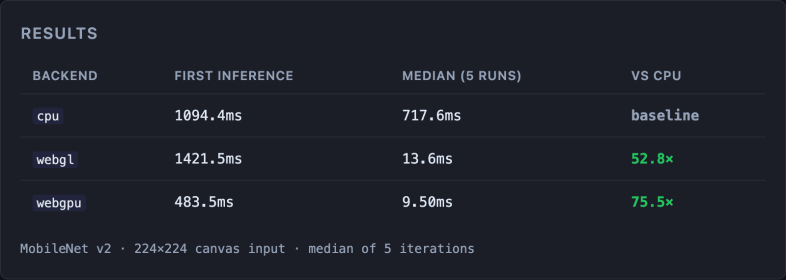
MacBook Air M4, Apple Metal-3 GPU. MobileNet v2 · 224×224 canvas image · median of 5 iterations · run the benchmark on your device (source code).
The first inference for webgl is slower than for webgpu (1421ms vs 483ms): webgpu compiles shaders more efficiently. In subsequent inferences, both backends are orders of magnitude faster than the CPU, but webgpu has the edge: 9.5ms versus 13.6ms for webgl, a 30% improvement.
For real-time use cases (camera, video), that difference is critical.
Real case: real-time pose detection
One of the most demanding use cases is pose detection (BlazePose, MoveNet) over the camera stream at 30 fps. With webgl, many mid-range devices can’t reach the required frame rate. With webgpu, they can.
import * as poseDetection from "@tensorflow-models/pose-detection";

async function startPoseDetection(videoElement, canvasElement) {
  await tf.setBackend("webgpu");
  await tf.ready();

  const detector = await poseDetection.createDetector(
    poseDetection.SupportedModels.MoveNet,
    { modelType: poseDetection.movenet.modelType.SINGLEPOSE_THUNDER }
  );

  const ctx = canvasElement.getContext("2d");

  async function detectFrame() {
    const poses = await detector.estimatePoses(videoElement);

    ctx.clearRect(0, 0, canvasElement.width, canvasElement.height);
    ctx.drawImage(videoElement, 0, 0);

    for (const pose of poses) {
      drawKeypoints(ctx, pose.keypoints); // implement your own drawing function
      drawSkeleton(ctx, pose.keypoints); // implement your own skeleton function
    }

    requestAnimationFrame(detectFrame);
  }

  detectFrame();
}
With webgpu, this loop runs at 25-30 fps on a MacBook Pro. With cpu, it drops to 2-3 fps.
Models viable in production today
Not all models are appropriate for the browser, even with WebGPU. The limiting factors are download size and memory footprint.
| Model | Task | Size | FPS with WebGPU |
|---|---|---|---|
| MobileNet v2 | Classification | ~14 MB | ~60 fps |
| MoveNet Lightning | Pose detection | ~9 MB | ~50 fps |
| BlazeFace | Face detection | ~0.6 MB | ~60 fps |
| YOLOv8n | Object detection | ~6 MB | ~30 fps |
| Whisper Tiny | Audio transcription | ~75 MB | Not real-time |
“Nano” and “tiny” models are designed for edge inference and are the ones that work best in the browser.
Performance considerations
Shared GPU memory
The device’s GPU shares memory with the page’s own rendering. Large models can create memory pressure and affect visual performance.
Model download
Use the Cache API to persist model weights between sessions and avoid repeated downloads.
// Cache the model with the Cache API
const CACHE_NAME = "tfjs-models-v1";

async function loadModelWithCache(modelUrl) {
  const cache = await caches.open(CACHE_NAME);
  const cached = await cache.match(modelUrl);

  if (!cached) {
    await cache.add(modelUrl);
  }

  return tf.loadGraphModel(modelUrl);
}
Web Workers
Moving inference to a Worker avoids blocking the main thread, though with WebGPU there are limitations depending on the browser.
The series
- WebGPU: the browser’s new performance engine
- Image processing in the browser with WebGPU
- ML in the browser with WebGPU — you are here
- Video editing in the browser with WebGPU: real-time effects frame by frame.
Conclusion
WebGPU turns ML in the browser from a curiosity into something usable in production for lightweight models. The TensorFlow.js + WebGPU backend combination, with fallback to WebGL or WASM, covers most modern browsers.
The clearest use case: any feature that needs to process camera or user images in real time without sending data to a server. Privacy and performance at the same time.
In the next article we close the series with the most ambitious case: video editing in the browser with WebGPU.