 Joan León
 This post was originally published on Octuweb in October 2019.
As web development professionals, we worry about choosing the best framework, the most current library, applying best practices in JavaScript and CSS, being careful with HTML semantics to improve SEO, improving our content’s accessibility, bundling and splitting files to optimize loading, but what about images?
Table of Contents
Open Table of Contents
- Images on the Web
Image OptimizationImage eXperience is Everyone’s BusinessOptimizeAdventure Time- Optimization from Graphic Editors
- Optimization from Applications
- Optimization from Local CLI Tools
- Image Optimization with Third-Party Online Services
- One More Thing
- Resources
- Image and Video Optimization Course
Images on the Web
Images are a very important part of the web. Surely with the constant advancement of technology, where we see continuous improvement in connectivity, possibly in the future content will have more videos than images. But the foundation will remain the same, improving user experience, which is what our work is really about.
According to HTTP Archive, 50% of transferred data to load a web page is images (JPEG, PNG and GIF). In August 2019, on mobile, images represented 911KB of loaded content for the average 1.8MB site, and on desktop it’s 1MB images in an average of 2MB.

Image Optimization Image eXperience is Everyone’s Business
A few days ago, in the article Web Performance in Modern Times, Miguel Ángel told us about a situation where he had problems planning a weekend activity: “Where I should see schedules, white appears on white. I think it’s loading, I’m not sure either… the train has arrived and my phone goes into my pocket. ‘I’ll try the other cinema’s website later’…”
It’s very likely that the white text for the schedules is over a fantastic and incredible image of a key scene from the latest film release, perfectly contrasted, perfectly framed to catch the viewer’s attention and inform them of showtimes to watch that great film… but, the image hasn’t loaded.
This is where I allow myself to use the term IX (Image eXperience). There are several points to consider for good IX, and not just running images through a compressor that promises to optimize our images most effectively.
In web development there are various profiles, whether in teams, individuals, or someone who plays more than one of these roles: product, UX, design, development, QA, even DevOps (or what’s now known as SRE) in the production deployment process. Each of these roles has the responsibility to offer the best for the user, provide maximum value to the product, pay attention to details.
Let’s continue with the example of the cinema schedule page that Miguel Ángel couldn’t see. In that situation, these are the questions I ask myself that could have been used as a checklist in the ideation, design, development, and deployment process of that page:
- Is an image really necessary to offer that information?
- If white text has been considered to maintain high contrast with the background image, why hasn’t a background color been defined in case the image doesn’t display?
- Is that image optimized for mobile devices?
- If it’s a JPEG format image, why isn’t it a progressive JPEG? That would have improved the IX.
- If it’s a critical image to highlight the product (in this case it makes complete sense), why hasn’t preloading that image been considered?
- Hasn’t a budget been defined for images?
- Haven’t tests been done at different connection speeds?
As you can see, image optimization for the web isn’t just choosing what compression percentage to save the image at. There are many things to consider and many profiles that can intervene and detect a possible failure in such a critical part of the product as in the example.
Treating all these points in depth would fill a book… oops!, I’m already working on it 🤪
Optimize Adventure Time
In the scenario we find ourselves in, we’ve already done the preliminary analysis of image needs. As the article title indicates, the most common question is Where do I start to optimize my images?.
Optimization from Graphic Editors
In the first line of action in image optimization we have image editors, like Photoshop, Affinity Photo, Pixelmator, PaintShopPro, Paint.net or GIMP among others. Let’s not forget Sketch which, although not an image editing program, is widely used in interface editing(1).
Photoshop
It’s the most used image editor by design teams. Curiously not the one that offers us the most optimization options. In its latest version CC 2019, it offers an export dialog window with some improvements to generate images of various densities, as can be seen in the left column, but doesn’t leave us much choice regarding image format and configuration parameters.
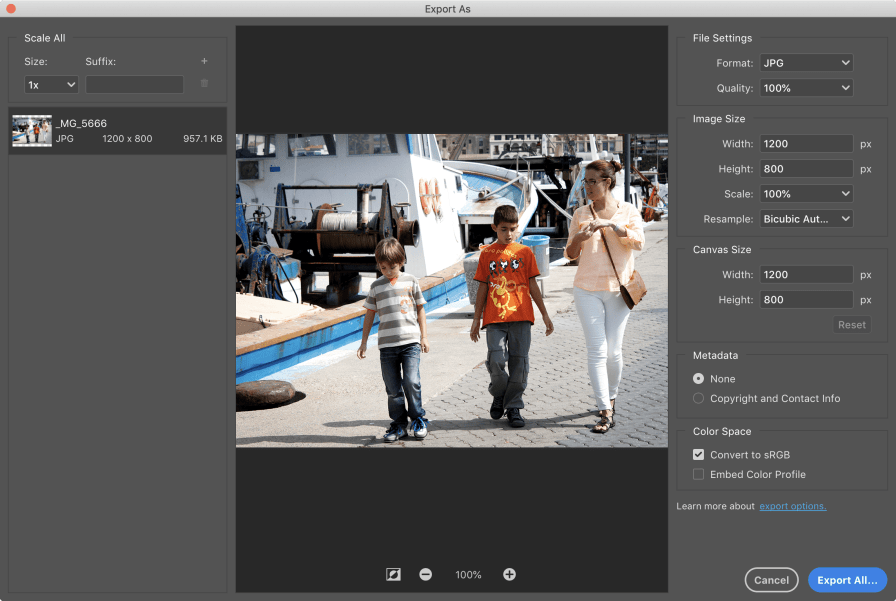
We can export to PNG, JPG, GIF and SVG formats (yes, SVG, it generates an SVG file with the image embedded in base64), beyond the quality percentage(2) we don’t have many configuration parameters to export images. What’s very striking is that we can’t count on WebP format for export.
In previous versions of Photoshop, and in this one under the name “Save for Web… (legacy)”, it offers us some predefined configurations, always according to Adobe team criteria. One of the parameters I miss in Photoshop is Chroma subsampling(3) where we could better optimize according to our criteria. Instead they maintain 4:4:4 (1x1) subsampling between 51% to 100% quality percentage values and below 51% they apply 4:2:0 (2x2) subsampling. That’s why you’ll notice a notable change between an image exported at 51% and the same image at 50%.
Affinity Photo
It’s another image editor that’s gaining traction in the design community. So let’s see what it offers us for image export.

We can see that in export they offer us more formats to select(4), but let’s not be fooled, compatible for web we still have PNG, JPEG, GIF and SVG available. But like Photoshop, it maintains simplicity in compression parameters with a slider to select values between 1% and 100%.
Pixelmator
A very interesting and economical alternative for image editing. It doesn’t improve on the compression quality selection option of previous editors, but we can see they’ve added WebP format as an option to improve our image optimization. Even with WebP, we can select the quality percentage(5).

GIMP
It’s possibly the least used tool in the design world. It’s an Open Source tool, with a large community behind it, and that can be seen in the numerous configuration parameters we have available in the advanced options when exporting an image.

Where we see we can configure more advanced parameters like Smoothing, Restart markers, Subsampling or DCT Method(6). These are configuration parameters that can be scary, and even make us invest a lot of time doing tests.
Other Editors
There are many editors, we can’t analyze them all. Most coincide with the functionality of defining a value scale for optimization of images with quality loss, like JPG and some with the option to do it also with WebP.
Optimization from Applications
In the previous section we analyzed the tools usually used by design teams for image editing. That team can extend the optimization boundary by using desktop application format tools, specific for this purpose.
Wait, we said that IX is everyone’s business. So here we have the opportunity to know tools that all roles involved in product development can use… let’s get to know some of these applications.
If you’re in a Mac environment, the best option (IMHO) is ImageOptim(7) by Kornel Lesiński and it’s also free.

Like most desktop applications in Mac environments, one of the characteristics that makes it stand out is a simple appearance, but don’t let that fool you, it’s a very powerful and professional tool.
By just dragging an image, a group of them or a folder, the application starts working, optimizing all images. Keep in mind that what it does is replace the original image with the optimized one. That’s a topic I’d like to comment on, but we’ll see it in the next section.
The default configuration offers lossless image compression, that means we don’t notice visual changes, but we will reduce the size. We have the option to check the Enable lossy minification checkbox to select quality percentages for lossy optimization.

One of the things I like most about ImageOptim is that behind that simplicity it hides a list of compressors(8) to get the best results in each case. It runs each of the compressors we have checked in the list on each of the images and selects the image with the best result. This process takes time, but I can assure you it’s worth it.

There are ImageOptim alternatives for Windows and Linux as we can see on its own website.
I’ll leave you references to other applications (for Mac) that you can try, many of them paid with trial versions for a few days.

Of these alternatives, the one I liked is Optimage, on the web they promise it’s more effective(9) than ImageOptim. It’s a more complete application, as it allows us to change the image format, change its dimensions, we can configure output folder or add prefix/suffix to not overwrite original images. JPEGmini Pro is very focused on the photography world, and really achieves very impressive results.
Optimization from Local CLI Tools
For people with more technical interests, wanting to control configuration based on parameters and be able to automate image optimization, we also have interesting options. We can install and configure native compressors(10), the vast majority in C, as is the case with MozJPEG or WebP (here we have it precompiled).

Example CLI command to compress an image with MozJPEG

Example CLI command to convert a JPEG image to WebP
We also have npm packages that offer us a wrapper with a much simpler API that we can integrate into our JavaScript application workflow.
There are several, one very interesting is next-optimized-images with options that go far beyond compressing images, as it contains other packages as dependencies that offer us the possibility of generating LQIP(11) images with lqip-loader or responsive-loader which generates the different sizes of responsive images we need on our site. For image optimization it uses several imagemin packages, so let’s take a look at it.
imagemin
Upon entering imagemin what we can see is that it’s not a GitHub repository, but an organization with all repositories (37) related to this ecosystem.
It’s a very modular system, the base imagemin package has 3 encoders defined as dependencies (JPEG, SVG and WebP), but we can add all the ones we need.
We’ll see there are a couple of patterns in the repository names of this organization:
- imagemin-[compressor], like imagemin-webp which has the module or plugin to work with WebP images
- [compressor]-bin, like cwebp-bin which contains a compiled version for each of the supported operating systems.
This approach makes it a very versatile solution, as modules can be maintained, updated and upgraded separately.
It can be used both as CLI (Command Line Interface) with imagemin-cli and from JavaScript. Here you’ll find implementation examples in npm, Gulp and Webpack from exercises of a course I taught at Escuela IT. In these examples you can see that I always keep the original image, to always be able to compress from the original image and not re-compress an image that has already been compressed, and sometimes by another compressor.
It’s not a good idea to do that. In this video you can see an example of what happens when re-compressing the same image:
The format with best results is FLIF(12), but it’s a format not supported by current browsers, so MozJPEG could be a viable option. But as I mentioned, I prefer to preserve the original image, in PNG if possible, to preserve all information and generate from it the compressed image and/or format change.
Imagemin is the most comfortable option if what we want is to automate image compression in the production deployment process. Both for the number of plugins and for the ease of integrating them into our stack.
One thing to keep in mind is the time it can take us to find the correct parameters to achieve the best result, since each imagemin plugin has its own value scale for optimization (sound familiar, the same happens in image editors).
Image Optimization with Third-Party Online Services
Another option we have available to optimize our images is to use an online service like Cloudinary, imgix, Fastly’s Image Optimizer, ImageOptim API or Kraken. These services offer us much more than optimizing, changing image size or format, they also offer cache service and CDN, which will benefit us if our product is visited from different parts of the world.
Each of them has its own functionalities, advantages, configurations and integrations, but I as a good Cloudinary Ambassador am going to talk to you about Cloudinary 😊
To know the functionalities that Cloudinary has you can consult the website. I want to talk to you about the functionalities I like, those I believe provide value, both for us as demanding developers and for IX.
Let’s start by saying that in the plans it offers, it has a free one with which we can try the tool without many limitations. We can use Cloudinary as an image server for a blog like this without problems.
Image Optimization
We can optimize both images we upload to Media Library of our account with the /upload/ method, and do it with remote images, with the /fetch/ method, documentation(13)

For the example we’ll use the API via URL:

Between the /upload/ type and the image version /v1570203279/, we have transformation methods. In this case I put f_auto, which refers to automatic format(14). This parameter will deliver the image in the best possible format according to the client’s request. If our client supports WebP it will deliver WebP, if our client supports JPEG 2000 as is the case with Safari, regardless of the original image format.
Let’s see an example of this.

In the image we see an example of one of the images from Cloudinary’s website, in this case
homepage-XX.png, there are requests for different Media Query sizes because I forced it. The original image is in PNG format and we can see that although the HTML request is for.png, Cloudinary delivers a WebP image for Chrome and Firefox, and in Safari’s case delivers a JPEG 2000 format. JPEG 2000 format has a larger size than WebP, but currently Safari doesn’t support that image format, instead it receives a JPEG 2000 image that on one hand it can render and that’s more compressed than JPEG and the original PNG.
Responsive Images
Image optimization isn’t just about compression and image quality, we also have to consider delivering them at the correct size, according to device, pixel density(15) and media queries. Here Cloudinary pleasantly surprises us again with Responsive Breakpoints Generator, a tool to generate all the images and code we need to cover the media queries we need.

Implementation, Scalability and Integration
Another thing I like about Cloudinary is the great support they offer for different SDKs for implementation: HTTPS/HTTP, Ruby, PHP, Python, Node.js, Java, JS, jQuery, React, Angular, .Net, Android and iOS. Plus we have them available Open Source.
I refer to scalability because of the Add-ons philosophy they have. We can activate (these are paid) services for Auto-Tagging with Machine Learning, remove image backgrounds with Cloudinary AI Background Removal or apply style transfer with Neural Artwork Style Transfer.
As for integration, it’s very interesting to see that we can integrate with CMS-eCommerce integrations Salesforce Commerce Cloud, Magento, Wordpress or Zapier.
This Doesn’t End Here
There are many functionalities, Add-ons, plugins, tools, so that you can have a simple and visual guide to Cloudinary’s highlights, here I leave you a website where you can play with the API and some of the photos they took of me at JS Camp 2019, CloudiCam.dev
One More Thing
Other Online Services
There are many online services to compress images, generally they compress images one by one, and not in batch like desktop applications do. I just want to comment on a couple of them that seem interesting to me:
- Squoosh, what I like about this application is that it runs entirely in the browser. It was developed by Google folks, it’s Open Source and uses WebAssembly to run binary codecs written in C or C++ in the browser.
- Compress-Or-Die uses the traditional format of running compression on the server side. What I like is that it offers many customization options, all documented, and very good results. It also includes an image analyzer with very detailed image information.
Oops! Don’t Forget to Optimize Any Image
It’s very easy for day-to-day work to make us fall (unconsciously) into the error of not optimizing our images, but we have the option to integrate one of the following tools.
ImgBot
A service to optimize images based on Magick.NET (a .NET library for ImageMagick) that we can integrate with our GitHub repository. We can configure it to indicate how often it will “parse” our images, define folders, images or extensions to ignore, as well as compression level. Most interesting is that it generates a Pull Request with the suggestion of optimized images.

image-actions
With the newly arrived GitHub Actions, the folks at Calibre have worked on a solution similar to ImgBot. The philosophy is the same, generate a Pull Request with optimized images.
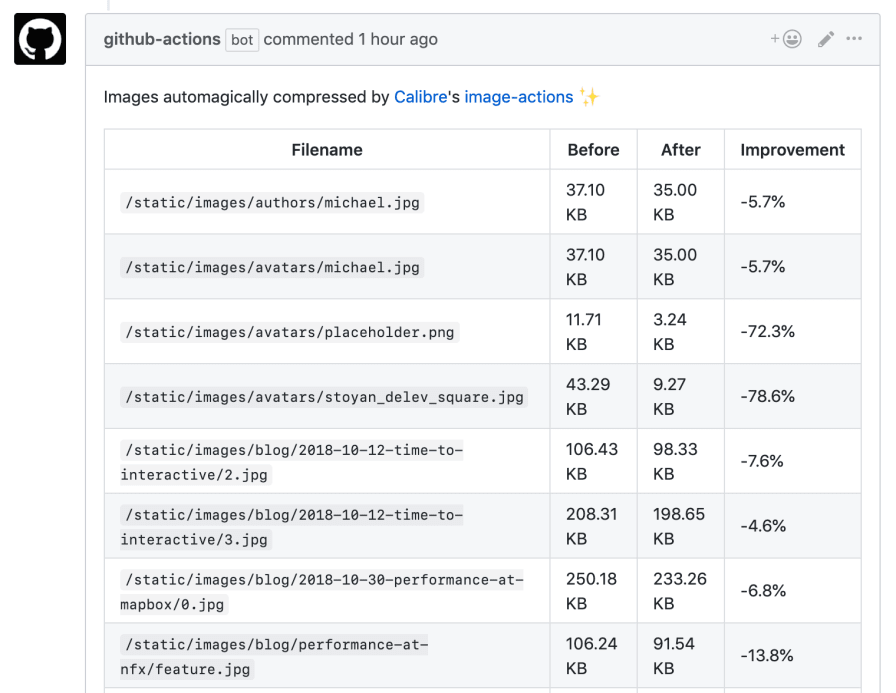
At the Blacksmith’s House…
All images in this article have been optimized with ImageOptim, most in PNG format as they’re screenshots with text. PNG is the ideal format to maintain quality and not generate noise around texts.
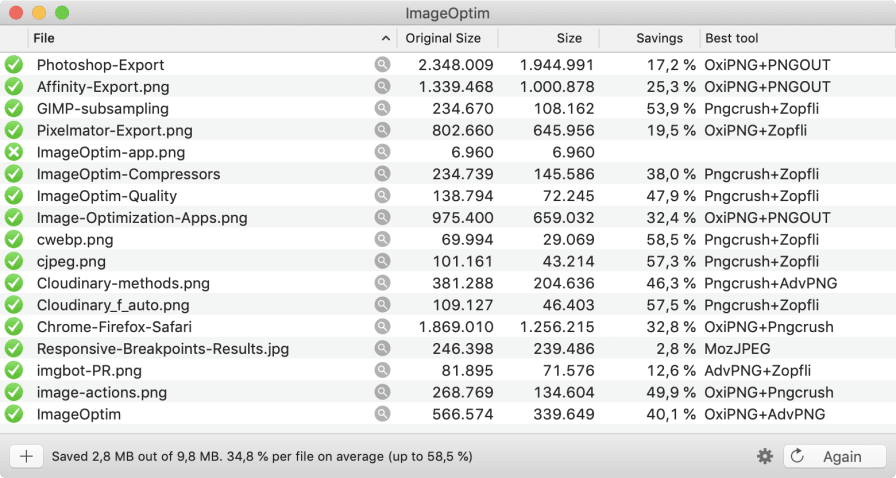
List of images optimized with ImageOptim(16)
With everything learned, if Félix ran all these images through Cloudinary they would be more optimized and with a format adapted to the browser used by the user. That’s what we’ve talked about with IX 😉
Resources
- Essential Image Optimization, I believe it’s the best and most complete image optimization guide, maintained by Addy Osmani.
- Tools for image optimization
- ImageOptim-CLI
- Benchmarks of Image Optimisation Tools
- Native image lazy-loading for the web!
- Image optimization
- 5 steps to speed up your image heavy website
- State of the Web: Top Image Optimization Strategies
- Converting Images To WebP
- How To Create and Serve WebP Images to Speed Up Your Website
- Use Imagemin to compress images
- Low Quality Image Placeholders (LQIP) Explained
- JPEG Compression Algorithm
- Finally understanding JPG
- Finally understanding PNG
Image and Video Optimization Course
Finally, I want to share with you that I’m working on an online course on Image and Video Optimization.

Notes
- (1) I add Sketch as an application for exporting images since in mobile application environments it’s more common to use PNG files for the application interface. Generally, in web environments, interfaces defined in Sketch end up being represented with CSS simply.
- (2) Each editing program, compression application or command line compressor has its own value scale to measure compression quality. This makes a fair comparison between different programs practically impossible. Here’s an article How to compare images fairly by Kornel Lesiński where he talks about it.
- (3) You can investigate more about the impact of Subsampling (Chroma Subsampling) here Chroma (or Color) Subsampling
- (4) In Photoshop if instead of exporting, we select “Save as…”, it offers us a large number of image formats “Graphic file formats”, most not compatible with browsers.
- (5) WebP is a lossy image format that sacrifices a lot of quality, so I recommend validating image quality at low quality percentages
- (6) GIMP has very good documentation, in the Save/export images section we’ll have all the details of the parameters we can configure in this window.
- (7) If you search for ImageOptim in the App Store, you’ll find an application called Image optimizer Compression, which is not the application ImageOptim we’re talking about.
- (8) In the list of compressors that ImageOptim uses is Guetzli from Google. It’s a very effective compressor in quality/weight ratio of images, but it’s extremely slow in the process. If we select that compressor in the configuration, ImageOptim will warn us with a very dissuasive message “Can take up to 30 minutes per image. Your system may become unresponsive while Guetzli is running.”.
- (9) I’m working on a comparison of those applications, stay tuned on twitter.
- (10) I leave you a link to the repository images-optimization-env where you can do compression tests with native compressors on Mac (I compiled the source codes on my machine). I used npm only to manage scripts, so it doesn’t require installation.
- (11) My colleague and friend José M. Pérez tells us about this technique in the article How Medium does progressive image loading (October 2015)
- (12) FLIF is the acronym for Free Lossless Image Format, a new lossless image format with very interesting compression ratios, you can find more information on the official website flif.info.
- (13) Cloudinary Delivery Types
- (14) Cloudinary Supported image formats.
- (15) Pixel density (Wikipedia).
- (16) In the Best tool column we can see the codec or codec combination used for compression. By default this column is not visible, you can add it with right click (context menu) in the column header.