
In a recent audit I opened a product page, didn't touch anything and left the mouse still. The page was at rest: no scroll, no clicks, no network requests. And yet the laptop fan started to spin up. I opened the **Layers** tab in Chrome DevTools and there was the clue: the `#document` layer showed a sky-high **Paint count**, and every time I checked again it had climbed even higher, with the page sitting still.

When a page at rest keeps repainting, it's burning battery and CPU to show nothing new. On a laptop you hear it in the fan; on a phone you feel it in the battery. The culprit is almost always a small dynamic component, a counter, a quotes _ticker_, a text carousel, that animates well but paints badly.

## The symptom: Paint count spiking at rest

The warning sign is simple: **a still page shouldn't repaint anything**. If you stop interacting and the browser keeps working, there's an animation running underneath, invalidating pixels every frame.

What's interesting about this case is that the developer had done their homework. The ticker's animation used **`transform`**, one of the properties everyone recommends because it "triggers neither layout nor paint". And yet the `#document` kept repainting nonstop. The theory said one thing and the Paint count said the opposite.

## Diagnostic tools

To hunt down this kind of problem there are two Chrome DevTools features that work together.

### Paint flashing (Rendering panel)

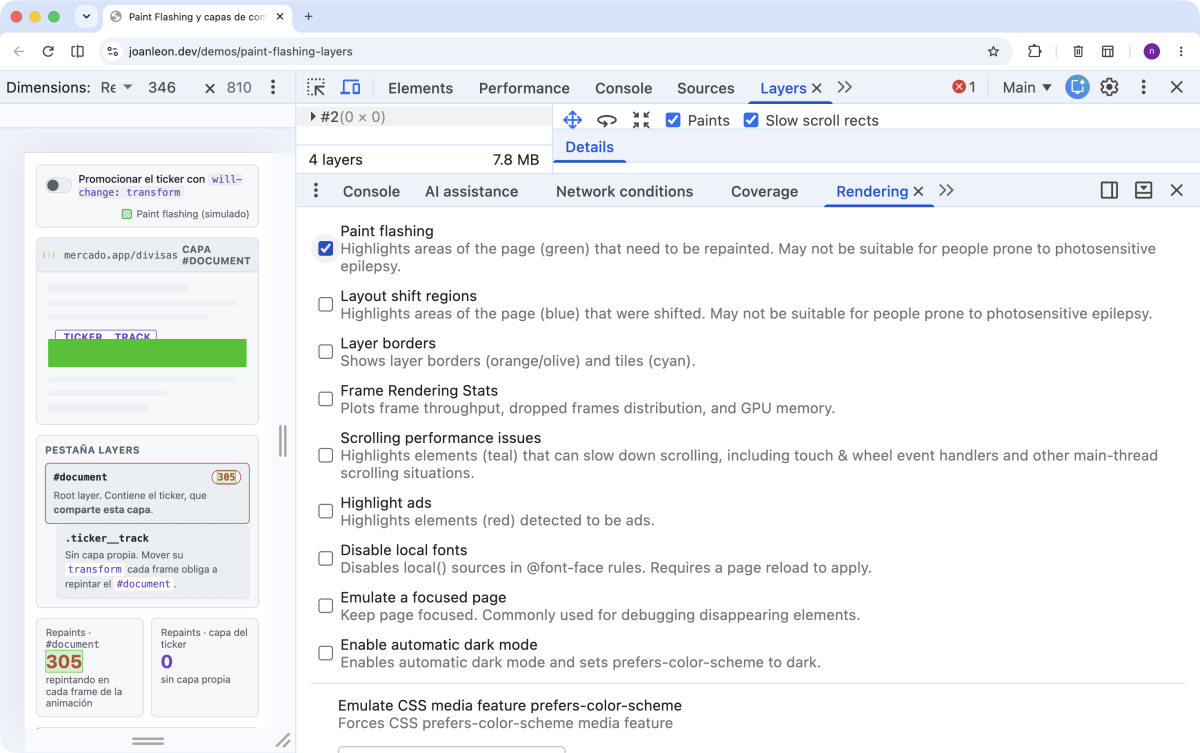
It paints **green** over every region of the screen the moment the browser repaints it. To enable it:

1. Open the command menu with `Cmd/Ctrl + Shift + P`
2. Type **"Show Rendering"** and press Enter
3. Tick the **Paint flashing** checkbox

Now leave the page at rest and watch. If you see constant green flashes over the ticker (or worse, over a huge area of the page), the browser is repainting every frame. How far the green spreads tells you **how much surface** is invalidated: often it's not just the component, it's the whole layer that contains it.

<figure>
  <picture>
    <img
      sizes="(max-width: 768px) 100vw, 768px"
      srcset="
        https://res.cloudinary.com/nucliweb/image/upload/c_scale,f_auto,w_600/joanleon.dev/assets/paint-flashing-document-layer/DevTools-Rendering-paint-flashing.png 600w,
        https://res.cloudinary.com/nucliweb/image/upload/c_scale,f_auto,w_1200/joanleon.dev/assets/paint-flashing-document-layer/DevTools-Rendering-paint-flashing.png 1200w"
      src="https://res.cloudinary.com/nucliweb/image/upload/c_scale,f_auto,w_1200/joanleon.dev/assets/paint-flashing-document-layer/DevTools-Rendering-paint-flashing.png"
      loading="lazy"
      decoding="async"
      height="460"
      width="732"
      alt="Chrome DevTools Rendering panel with the Paint flashing checkbox enabled; the .ticker__track is highlighted green because it repaints every frame, while the #document repaint counter keeps climbing.">
  </picture>
  <figcaption>With <strong>Paint flashing</strong> enabled, the browser tints the ticker area green every frame: the real-time signal that something is repainting while the page is at rest. <a href="https://res.cloudinary.com/nucliweb/image/upload/c_scale,f_auto,w_1600/joanleon.dev/assets/paint-flashing-document-layer/DevTools-Rendering-paint-flashing.png" target="_blank" rel="noopener">Open larger image</a></figcaption>
</figure>

### Layers tab

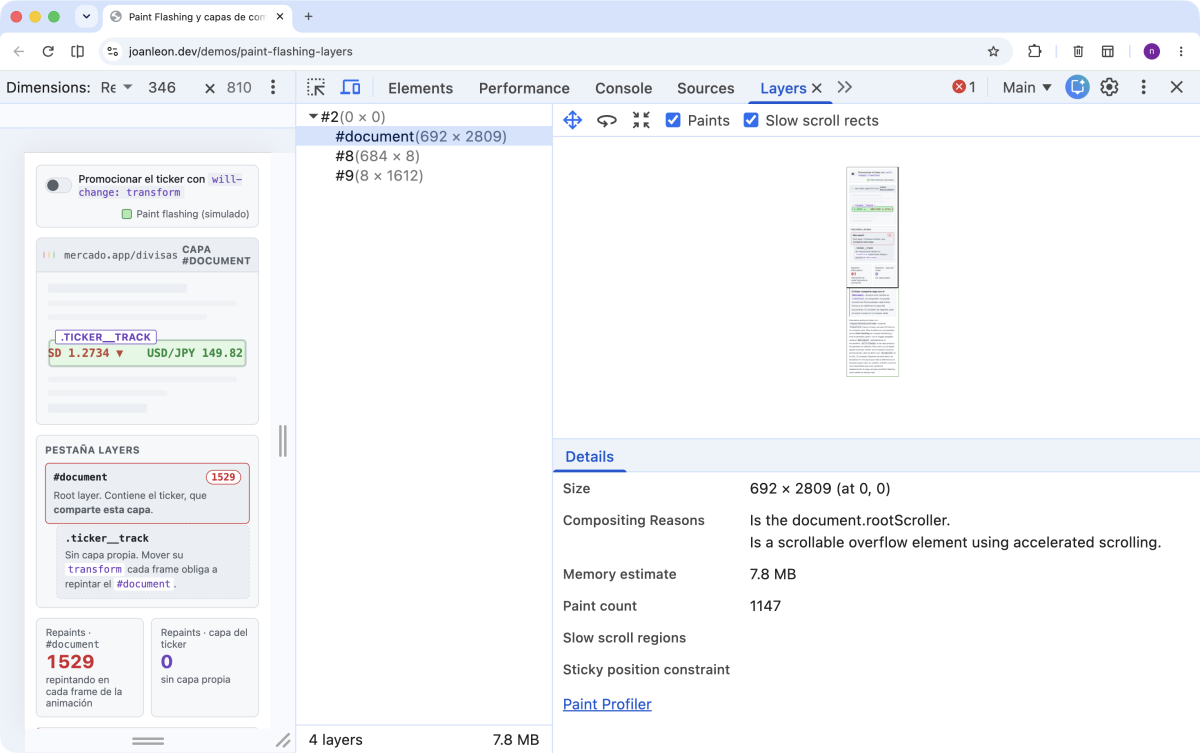
The **Layers** tab shows the page's compositing layer tree. To open it, command menu → **"Show Layers"**. For each layer you care about:

- **Paint count**: how many times that layer has repainted (it's a snapshot, not a live counter)
- **Memory estimate**: how much GPU memory it uses
- **Compositing reasons**: why the browser did (or didn't) give it its own layer

Select the `#document` layer with the page at rest and look at its Paint count. Here it helps to know a quirk of the tool: **the Layers panel's Paint count doesn't update live**. It's a snapshot that only refreshes when you reselect the node, so you won't see it climb on its own while it stays selected.

To confirm it's growing, select another layer and go back to `#document` every few seconds: if the number is higher each time with the page still, you've confirmed the ticker has no layer of its own and is dragging the whole document layer into repainting with it. For the real-time signal, lean on Paint flashing; the Layers panel's Paint count is the cumulative numeric confirmation.

<figure>
  <picture>
    <img
      sizes="(max-width: 768px) 100vw, 768px"
      srcset="
        https://res.cloudinary.com/nucliweb/image/upload/c_scale,f_auto,w_600/joanleon.dev/assets/paint-flashing-document-layer/DevTools-Layers-document-paint-count.png 600w,
        https://res.cloudinary.com/nucliweb/image/upload/c_scale,f_auto,w_1200/joanleon.dev/assets/paint-flashing-document-layer/DevTools-Layers-document-paint-count.png 1200w"
      src="https://res.cloudinary.com/nucliweb/image/upload/c_scale,f_auto,w_1200/joanleon.dev/assets/paint-flashing-document-layer/DevTools-Layers-document-paint-count.png"
      loading="lazy"
      decoding="async"
      height="460"
      width="732"
      alt="Chrome DevTools Layers tab with the #document layer selected: it shows a high, growing Paint count and, under Compositing reasons, that it's the document.rootScroller with accelerated scrolling.">
  </picture>
  <figcaption>In the <strong>Layers</strong> tab, the <code>#document</code> layer accumulates a high, growing Paint count because the ticker shares its layer. The number is a snapshot: reselect the node to watch it climb. <a href="https://res.cloudinary.com/nucliweb/image/upload/c_scale,f_auto,w_1600/joanleon.dev/assets/paint-flashing-document-layer/DevTools-Layers-document-paint-count.png" target="_blank" rel="noopener">Open larger image</a></figcaption>
</figure>

## The scenario: a ticker that animates well and paints badly

This is the kind of component that shows up again and again: a quotes ticker that scrolls its values in a loop. The HTML and CSS are spotless.

```html
<div class="ticker">
  <div class="ticker__track">
    <span>EUR/USD 1.0921 ▲</span>
    <span>GBP/USD 1.2734 ▼</span>
    <span>USD/JPY 149.82 ▲</span>
    <!-- …the set of values is duplicated for a seamless loop… -->
  </div>
</div>
```

```css
.ticker {
  overflow: hidden;
}

.ticker__track {
  display: inline-flex;
  gap: 2rem;
  white-space: nowrap;
  /* We only move transform: the compositor's "cheap" property */
}
```

And the scrolling logic, in JavaScript with `requestAnimationFrame` to move the track frame by frame:

```js
// The track scrolls by mutating transform every frame.
// Since it's a JS-driven animation, Chrome won't promote it on its own.
const track = document.querySelector(".ticker__track");
let x = 0;

function tick() {
  x -= 0.6;
  if (-x >= track.scrollWidth / 2) x += track.scrollWidth / 2;
  track.style.transform = `translateX(${x}px)`;
  requestAnimationFrame(tick);
}

requestAnimationFrame(tick);
```

On paper it's a textbook example: we only move `transform`, we don't touch properties that trigger layout. And yet Paint flashing paints the ticker's area green every frame, and the `#document` repaints nonstop while the ticker scrolls.

The problem isn't **which** properties we animate, but **where** the moving pixels live.

## The explanation: two threads, one layer

To understand why `transform` isn't enough, we have to separate two things that happen on different threads.

- **Main Thread:** runs JavaScript, computes styles (_Recalculate Style_), computes geometry (_Layout_) and rasterizes pixels (_Paint_). Everything expensive lives here.
- **Compositor Thread:** takes the already-rasterized layers and combines them on screen. It can move them, scale them and change their opacity **without repainting them**, because it works with already-generated bitmaps.

The promise of `transform` and `opacity` is this: if a layer is already rasterized, the compositor can move or fade it on its own, without bothering the main thread and without repainting. Free animation on the GPU.

But that promise comes with **a condition almost nobody mentions**: the element that moves has to be on **its own composited layer**. If the ticker shares a layer with the `#document`, the compositor can't move it in isolation, because moving that piece would leave a hole in the bitmap of the whole page. The browser's only way out is to **re-rasterize the entire document layer** on every frame of the animation.

That's the trap: using `transform` doesn't give you compositing by magic. It gives you compositing **only if the element already has its own layer**. Without promotion, `transform` rasterizes like anything else, and drags the whole layer that contains it.

> **An honest caveat:** a declarative animation with `@keyframes` of `transform`/`opacity` usually does get promoted automatically, Chrome detects the animation and gives it its own layer. The case that repaints is precisely this one: an animation **driven by JavaScript** (changing inline styles frame by frame, or kicking off transitions from code). The browser doesn't know in advance that it's a continuous animation, so it won't promote the element on its own. That's why real-time data _tickers_ are repeat offenders for this problem.

## The fix: promote the element to its own layer

The fix is to tell the browser explicitly that this element is going to change its `transform`, so it reserves a composited layer before the movement starts.

```css
.ticker__track {
  display: inline-flex;
  gap: 2rem;

  /* Promote the element to its own composited layer */
  will-change: transform;
}
```

Flip the toggle in the demo to see the change live: the `#document`'s repaint counter freezes and the ticker gets its own composited layer.
<figure>
  <iframe
    id="paint-flashing-demo"
    src="/demos/paint-flashing-layers-en.html"
    width="100%"
    height="720"
    style="border: none; border-radius: 8px; display: block;"
    title="Interactive demo: a ticker animated with transform repaints the #document layer when it has no layer of its own; once promoted with will-change, the document stops repainting"
    loading="lazy"
  ></iframe>
  <figcaption>Leave the demo at rest and watch the <code>#document</code>'s repaint counter climb on its own. Turn on <code>will-change</code> to promote the ticker to its own layer and watch it stop. <a href="/demos/paint-flashing-layers-en.html" target="_blank" rel="noopener">Open the demo in a new tab ↗</a> to inspect it with your own DevTools (Layers and Rendering tabs), or <a href="/demos/paint-flashing-layers-en.html?promoted" target="_blank" rel="noopener">open it already fixed with <code>?promoted</code> ↗</a> to confirm the <code>#document</code> doesn't repaint from the first render.</figcaption>
</figure>
<script>
window.addEventListener('message', function(ev) {
  if (ev.data && typeof ev.data.paintFlashHeight === 'number') {
    var f = document.getElementById('paint-flashing-demo');
    if (f) f.style.height = (ev.data.paintFlashHeight + 24) + 'px';
  }
});
</script>

You can also check it in the Layers tab:

- **A new layer** appears for `.ticker__track`, separate from `#document`.
- Its **Compositing reasons** will mention `will-change: transform` (the exact wording varies between Chrome versions).
- When you **reselect the `#document` layer**, its Paint count no longer grows with the page at rest.
- With **Paint flashing** on, the green disappears: nothing repaints during the animation.

The classic alternative, predating `will-change`, is to force the layer with a 3D transform:

```css
.ticker__track {
  transform: translateZ(0); /* the old GPU-promotion "hack" */
}
```

It works because any 3D transform forces the browser to create a layer. But `will-change` is the right tool today: it expresses **intent** ("this is going to change") instead of a side effect, and the browser can manage the layer more intelligently, creating it just before the animation and releasing it afterwards.

## The golden rule: promote with care

At this point the temptation is to slap `will-change: transform` on everything that moves. Bad idea. **Every composited layer consumes GPU memory**, and over-promoting has its own cost:

- If you put `will-change` on dozens of elements, you multiply memory usage and can make performance worse instead of better, especially on phones with a modest GPU.
- `will-change` isn't a "make it faster" switch. It's a resource reservation. Reserving what you don't use is waste.

The criteria I apply in audits:

1. **Measure first.** If the Layers tab and Paint flashing show no repaints at rest, there's nothing to promote. Don't optimize blindly.
2. **Promote only what animates continuously or is driven by JS:** _tickers_, carousels, live counters, complex _sticky_ elements.
3. **Put `will-change` on the specific element that moves**, not on its container or half the tree.
4. **If the animation is occasional**, add `will-change` just before (on hover, on start) and remove it when it's done, so you don't keep the layer reserved permanently.

A single well-placed layer fixes a `#document` that repaints on its own. Ten badly-placed layers create a new memory problem. Performance integrity isn't about promoting everything, it's about promoting just enough, where the measurement asks for it.

## Conclusion

`transform` and `opacity` are the right properties to animate, but they're not magic: they only travel through the compositor if the element has **its own composited layer**. When a dynamic component, almost always driven by JavaScript, animates without its own layer, it drags the whole `#document` layer into repainting every frame, and you see it in the Paint count and in Paint flashing's green even with the page at rest. The fix is to promote that specific element with `will-change` for the property it animates, verify in the Layers tab that the `#document` stops repainting, and resist the temptation to promote everything.

## References

- [Stick to compositor-only properties and manage layer count (web.dev)](https://web.dev/articles/stick-to-compositor-only-properties-and-manage-layer-count)
- [will-change (MDN)](https://developer.mozilla.org/en-US/docs/Web/CSS/will-change)
- [Analyze rendering performance with the Layers panel (Chrome DevTools)](https://developer.chrome.com/docs/devtools/layers)
- [Rendering performance (web.dev)](https://web.dev/articles/rendering-performance)
